EuroScope Client Guide
Initial setup, and future AIRAC Cycle updates must be made manually for the EuroScope client.
VATNZ has two packages available:
- SkyLine: Contains all of the required position and frequency definitions alongside the Sector Files.
- Sector Files: Contains only the Sector Files.
This page covers how to install the VATNZ Skyline Package, and how to update the sector files. For a detailed guide on installation of the client itself, refer to the EuroScope documentation
For most cycles, Controllers will only need to replace the Sector Files. Controllers will be explicitly instructed in the Changelogs should they need to replace the entire SkyLine package.
VATNZ Skyline Setup
The Skyline package is intended for initial setup of the client, or for larger changes to the dataset. For regular AIRAC cycle updates, please refer to Updating Sector Files
Backing up your Settings
Files in the /Settings/ folder may be overwritten by the new SkyLine package, losing all of your display and list settings. Before updating, we recommend you back-up your List.txt and Screen.txt files, and reimporting them after you replace the rest of the package.
It is important that you back-up only those two files, as other files in the /Settings/ folder would have changed.
-
Download the latest SkyLine Package from the VATNZ website. This will download a
.zipfile named "VATNZ-SKYLINE_xxyy", wherexxis the year, andyyis the cycle.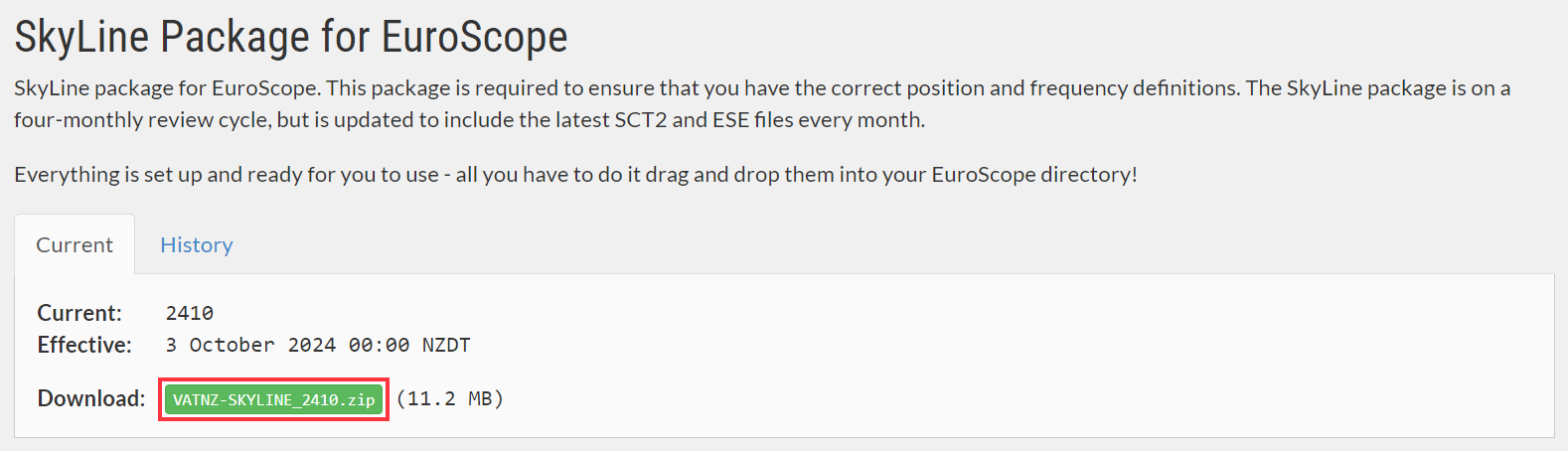
-
In Windows, open an explorer window and navigate to your EuroScope files. By default this is in the
AppData\Roaming\EuroScopedirectory. Note: This may be in theDocuments\EuroScope\directory for older installations of EuroScope. - Create a new folder in this directory for your VATNZ files, the name of this folder does not matter.
-
Ensure you archive your current Skyline files if present, then drag the new files into this new folder.
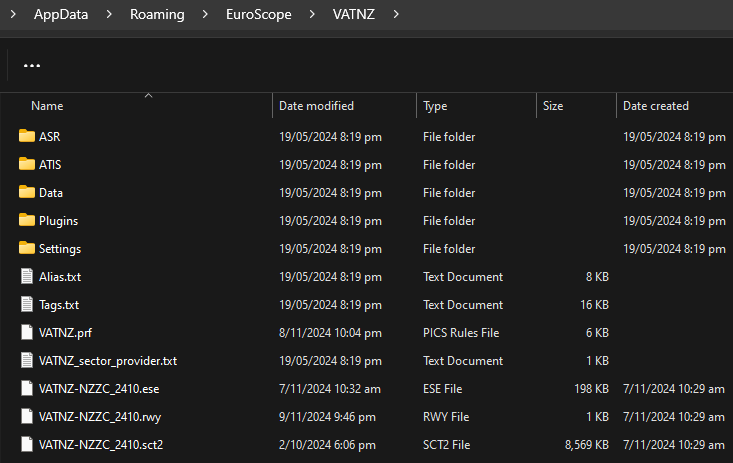
It should look something like this -
Open EuroScope. If prompted to select a profile file, select
VATNZ.PRF - A dialogue may appear notifying you that the active sector file cannot be found. Click No.
- A file selection dialogue will appear. Select the new
.sct2file, and click 'Open'. - Another dialogue box will appear, notifying you that the file has been loaded. Click Yes to make this the new active sector file.
- When EuroScope loads, ensure that no error messages appear in the System box.
Updating Sector Files
-
Download the latest Sector Files from the VATNZ website. This will download a file named "VATNZ-NZZC_xxyy", where
xxis the year, andyyis the cycle.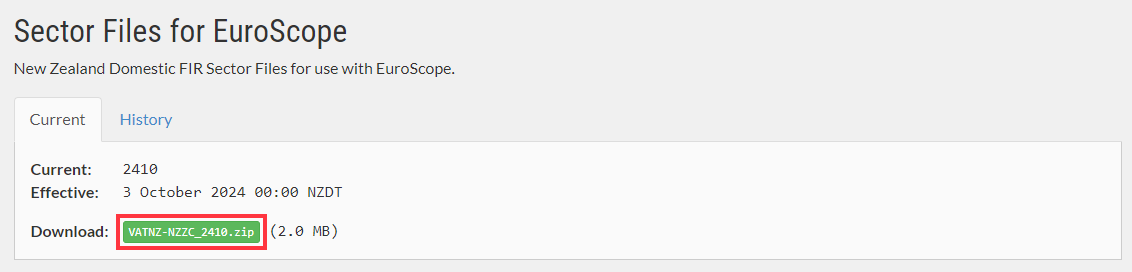
-
In Windows, open an explorer window and navigate to your EuroScope files. By default this is in the
AppData\Roaming\EuroScopedirectory. Note: This may be in theDocuments\EuroScope\directory for older installations of EuroScope. -
Archive the current
VATNZ-NZZC_xxyyfiles, and drag the new files into this directory.
Warning
Users should archive the current VATNZ.prf file and keep it along with the previous cycle ESE and SCT2 files.
- Open EuroScope. A dialogue will appear notifying you that the active sector file cannot be found. Click No.
- A file selection dialogue will appear. Select the new
.sct2file, and click 'Open'. - Another dialogue box will appear, notifying you that the file has been loaded. Click Yes to make this the new active sector file.
- When EuroScope loads, ensure that no error messages appear in the System box.
ATIS Editor (v3.2.3+)
EuroScope version 3.2.3 adds support for multiple ATIS connections, allowing controllers to publish ATIS information for up to four aerodromes within their area of responsiblity.
You can access the dialog box for all ATIS connections on the top bar, next to your primary frequency.

Just select one of the four ATIS dialogs and set it up as you usually would, then repeat as desired for up to four connections. The current ATIS letter for each connection will display in the box, as it did in previous versions.
VAT-ATIS Link for Multiple Connections:
https://vatatis.nz/gen?arr=$arrrwy($atisairport)&dep=$deprwy($atisairport)&info=$atiscode&metar=$metar($atisairport)
Sector Extensions for VATSIM Radar
EuroScope does not support automatic sector extensions.
Controllers must manually enter their extension lines in the Controller Info field.
Use the standard New Zealand sector–frequency mapping:
| Sector | Frequency |
|---|---|
| OCR | 123.9 |
| BAY | 119.5 |
| NAK | 123.7 |
| OHA | 126.2 |
| STH | 129.3 |
| KAI | 129.4 |
Example Manual Entry
If you are controlling OCR and extending the country, your Controller Info should include:
Extending BAY 119.5, NAK 123.7, OHA 126.2, KAI 129.4, STH 129.3

Manual Updates Required in EuroScope
EuroScope does not automatically update your Controller Info when:
- When your primed frequencies are changed
Because of this limitation:
Controllers are expected to manually update their Controller Info whenever sector coverage changes.
This ensures VATSIM Radar has up‑to‑date extension information.